Using the Exceptions Control
 Use the Exceptions control to quickly view, sort, and filter exceptions for multiple selected Nodes to help you find suspicious or problematic data to resolve issues. You can create up to eight instances of this control. Exceptions handling functionality is available in systems licensed for either FULL or REPOSITORY modes.
Available Node categories for display in this control include <Any>, Group, Device, Gas Device, Liquid Device, Accessory, or Station Nodes. To select multiple Nodes from the filtered Node Chooser results, use the Apply changes option. See Using the Node Chooser Control for more information about using Apply changes to display multiple Nodes.
The data grid displays the exceptions records that meet the defined filter criteria. Each row represents an exception record. Each column represents a category of data. The control toolbar and the context menu provide additional options to manage files, and to view and access associated data.
Use this control to filter, analyze, and ignore exceptions.
- Filter - After initial Node selection, exceptions data for the selected Nodes can be additionally filtered, grouped, and displayed using an easily manipulated custom grouping hierarchy. Utilize the group box to access this optional filtering functionality, that helps you analyze the exceptions at various levels. See Filtering and Sorting Exceptions for more information.
- Analyze - Once an exception requiring further attention is identified, you can set it as the Session Node, which will cause other controls (if set to Use Session Node) to update and display associated data. Use this feature to view, and go back and forth between, large amounts of related data in a small amount of time, to make informed decisions about handling exceptions and determine if other action may be indicated. See Session Node for more information.
- Ignore - After analysis of the data, you may decide to ignore given exception(s). See Ignoring Exceptions for more information.
You must have proper security authorization to perform these actions. See FMS Security (and EXCP security event) for information about configuring security access for the Exceptions control.
See CygNet FMS Exceptions Control for more information about configuring this control in CygNet Studio.
See FMS Explorer User Interface for more information about the FMS Explorer user interface.
Viewing Exceptions Data
Use the Exceptions control Chooser pane (unless the Use Session Node option is selected in the Options pane) and Options pane to filter the data to show in the grid. Either pane can optionally be displayed or pinned to the left side.
Chooser Pane
In the Chooser pane, select the Nodes for which you want to view data from the available Node group, category, and/or filter. The embedded Node chooser displays <Any>, Group, Device, Gas Device, Liquid Device, Accessory, or Station Node category options for this control. Further filter the Nodes by name, description, or ID as desired. See Using the Node Chooser Control for more information.
Options Pane
In the Session section of the Options pane, define the values for the data you would like to view. In the Exceptions section, define additional display options.
|
Options Pane |
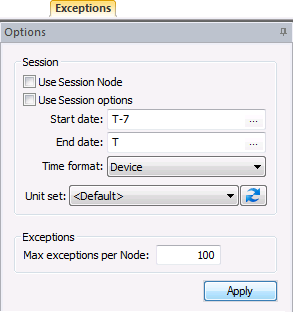
Exceptions control options are as follows.
| Option | Description |
|---|---|
| Session | |
|
Use Session Node |
Click the check box to select/clear the option to Use Session Node instead of using the chooser. Notes: The Use Session Node check box is selected by default for Data controls (Alarm, Configuration, History Graph, History Grid, and Raw Data). The Use Session Node check box is cleared by default for Summary controls (Dashboard, Exceptions), Reports controls, and Admin controls (Balance, Jobs; not applicable to Close Period, PPA). |
|
Use Session options |
Click the check box to select/clear the option to Use Session options instead of entering a time window and time format. Notes: The Use Session options check box is selected by default for Data controls (Alarm, Configuration, History Graph, History Grid, and Raw Data). The Use Session options check box is cleared by default for Summary controls (Dashboard, Exceptions), Reports controls, and Admin controls (PPA, Balance, Jobs; not applicable to Close Period). |
|
Start date |
Date selections are in Contract days (C). Select the starting date, unless Use Session options is selected. Type the date into the text box or click ... to Select Date. See Selecting Date and Time for more information. |
|
End date |
Date selections are in Contract days (C). Select the ending date, unless Use Session options is selected. Type the date into the text box or click ... to Select Date. See Selecting Date and Time for more information. |
|
Time format |
Click to select the desired time format from the drop-down menu, unless Use Session options is selected. Options are as follows.
Note: Selecting a time format in the Options pane does not affect the format in which you view Generated Date/Time values. The Generated Date/Time timestamp is always displayed in Local time (L). The view of other data displayed in the grid will reflect your time format selection. |
|
Unit set |
Select a unit set in which to view the data. Options appear in the drop-down menu, which is populated by the unit sets defined in the service, and includes a default unit set. |
|
|
Refresh the available unit set list. |
| Exceptions | |
|
Max exceptions per Node |
Enter the maximum number of exceptions records to display for each Node. When Use filter is selected, the maximum value applies to the number of filtered exceptions to display, not the total exceptions present for the Node. Note: Once the exceptions within this number of records are handled, update the screen to return another set of records. Default value is 2000 |
|
Apply |
Click to Apply the changes made through the Options pane. Note: When you click Apply on the Options pane, any Node selections (singular or multiple) that have been made but not applied on the Chooser pane will also be applied. |


Columns
Columns can be reorganized for the most efficient viewing of data in the following ways.
- Click on a column header to sort the data grid view based on that field, in either ascending or descending order.
- Hover over a fixed column edge to display an icon to reset column width. Drag the column to the desired width.
- Drag the column header left or right to the desired location.
- Drag any column header off the grid entirely to reduce the data viewed. The removed column header will appear on the field chooser.
- Drag a column header from the field chooser to the column header row to add that data field to the view.
- Utilize data column headers to group data in a hierarchy of your configuration.
- Type a filter value in the first row below the header to filter results within the selected property. Default value is <all> results.
Columns displayed are as follows.
| Column Property | Description |
|---|---|
|
Exception Date/Time (t) |
Displays the date/time of the data that caused the exception, followed by the date/time format (t) as selected on the Options pane. Possible values for (t) are as follows.
|
|
Exception Description |
Displays the Exception description for the selected exception record. |
|
Exception Status |
Displays the record status of each exception, for record states as selected to be shown from the Show record states list on the Options pane. Possible values are as follows.
|
|
Exception Type |
Displays the type of validation failure that caused the exception. Possible values are as configured for validation. See Exceptions and Validation in the CygNet Measurement Concepts section for more information. |
|
Generated Date/Time (L) |
Displays the date/time at which the exception was generated. Note: Generated date/time is always displayed in Local time (L). |
|
Ignored Audit Record |
Provides a link to the audit record if the exception status is Ignored. |
|
Limit |
Displays the value Limit against which the data was checked, in order to validate the rule. The type of validation rule the data failed determines the value displayed in this column. Possible values are as follows.
See FMS Validation Rules for more information. |
|
Node Name |
Displays the Node name for the selected exception. |
|
Node Description |
Displays the Node description for the selected exception. |
|
Node Priority |
Displays the priority of the selected Node(s). The priority number assigned to a Node places it within a manually sortable list of Nodes, to help sort data. Higher numbers place a Node higher up on a list. Default value is 0. |
|
Severity |
Displays the Severity of the exception. Possible values include High, Medium, and Low. |
|
Units |
If applicable, displays the Units of the exception. |
|
Value |
Displays the data Value that failed the validation rule, thereby generating the exception. The type of validation rule the data failed determines the value displayed in this column. Possible values are as follows.
See FMS Validation Rules for more information. |
Managing Exceptions Data
Toolbar
Use the Exceptions control toolbar to access options to manage the data you are viewing. See Menus and Toolbars for more information.
|
Exceptions control toolbar |

The following options appear on the toolbar; unavailable buttons appear dimmed.
| Option | Description |
|---|---|
|
|
Click to Refresh the control view. Note: The Refresh button will not take into account changes made through the Options pane that have been selected but not yet applied. See Refresh Button for more information. |
|
|
[The Save button is not available on this control.] |
|
|
[The Cancel button is not available on this control.] |
|
|
Click to Open and view the control as a .csv file. |
|
|
[The Print button is not available on this control.] |
|
|
Click to Export the contents of the control to a .csv file. |
|
Click to access the Configure Filter dialog box to select/clear the check boxes for exception statuses and exception types (that caused the exception) to include in the records displayed in the control, when Use filter is selected. Exception status options are as follows.
Default is Open selected. Exception type options are as follows.
Default is all selected. |
|
|
Click to select/clear the check box to use/ignore the exceptions filter. |


Context Menu
Right-click in the column header row to access the option to display/hide the Field Chooser so that you can customize which columns to display in the grid. See Using the Field Chooser for more information.
Right-click in the column header row to access the option to display/hide the Group box for grouping exceptions data.
Right-click in the Exceptions grid white space to access options to Expand all rows, or Collapse all rows.
Right-click on an Exceptions grid data row to access the following options.
| Option | Description |
|---|---|
|
Ignore exception |
Click Ignore exception to ignore an open exception. See Ignoring Exceptions for more information. |
|
Set as Session Node |
Click Set as Session Node to set the selected Node as the Session Node. Alternatively, press Ctrl+Shift+S to set the Session Node using a keyboard shortcut. See Session Node and Using Keyboard Shortcuts for more information. |
|
View Node properties |
Click View Node properties to access the Properties dialog box to view properties for the selected Node. See Viewing and Editing Node Properties for more information about viewing and editing Nodes. |
|
View polling device |
Note: This feature is currently available only in 32-bit versions of the software. Click View polling device to access the FMS Polling Device dialog box, to view DDS data groups and Comm data bytes for the polling device linked to the selected Node. See Viewing SCADA Polling Device for more information. |
|
Expand all rows |
Click Expand all rows to view all rows of data, grouped according to the sorting hierarchy. |
|
Collapse all rows |
Click Collapse all rows to view only the divisions of the top level of the sorting hierarchy. Click to expand each section to view again as desired. |
More:
 Filtering and Sorting Exceptions

